Testing in-app purchases in the sandbox environment is a crucial step in ensuring that your app functions properly before submitting it to the App Store. This guide will walk you through the process of sandbox testing for iOS, highlighting the importance of sandbox app testing and how to test in-app purchases in sandbox effectively.
Why Test iOS In-App Purchases in Sandbox?
Testing in-app purchases in the sandbox allows you to simulate the entire purchasing process without actually charging users. This sandbox testing environment replicates the App Store but skips actual payment processing, making it ideal for detecting any issues before release.
By testing in a controlled sandbox app testing setup, you can ensure your in-app purchases and subscriptions work as expected, without affecting real users or transactions.
Prerequisites to Test iOS In-app Purchases
To test in-app purchases, you need the sandbox testing environment provided by Apple. This environment lets developers simulate purchases using test in-app purchases without real monetary transactions. Below are key prerequisites for testing:
- The app must be a developer build in Xcode.
- In-app purchases can be tested without App Review approval.
- Device provisioning is limited to prevent widespread distribution outside the App Store.
- Subscription renewals are accelerated in the sandbox app testing environment.
- No receipts are generated until a purchase is made.
Add a Testing Account to App Store Connect
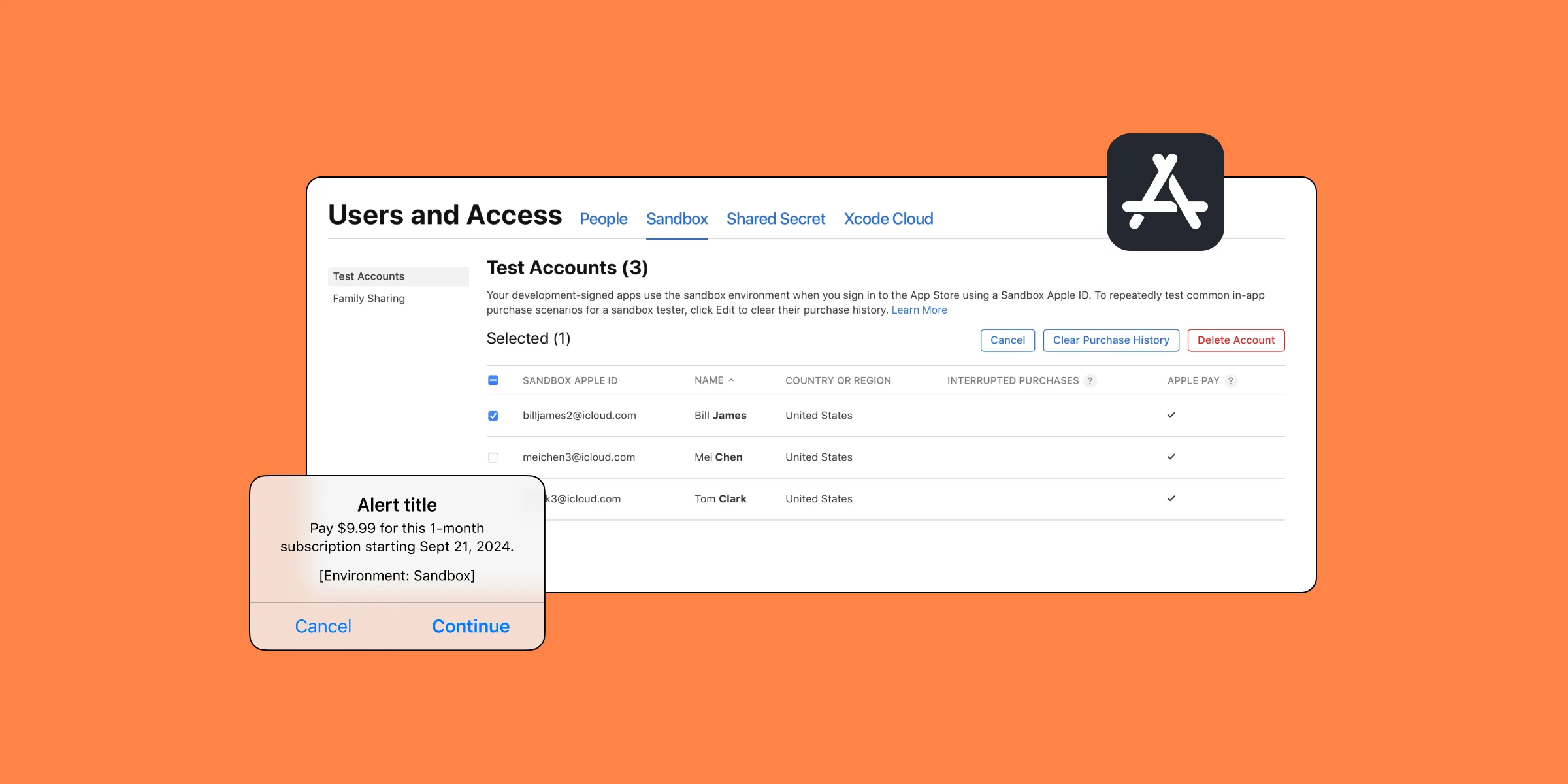
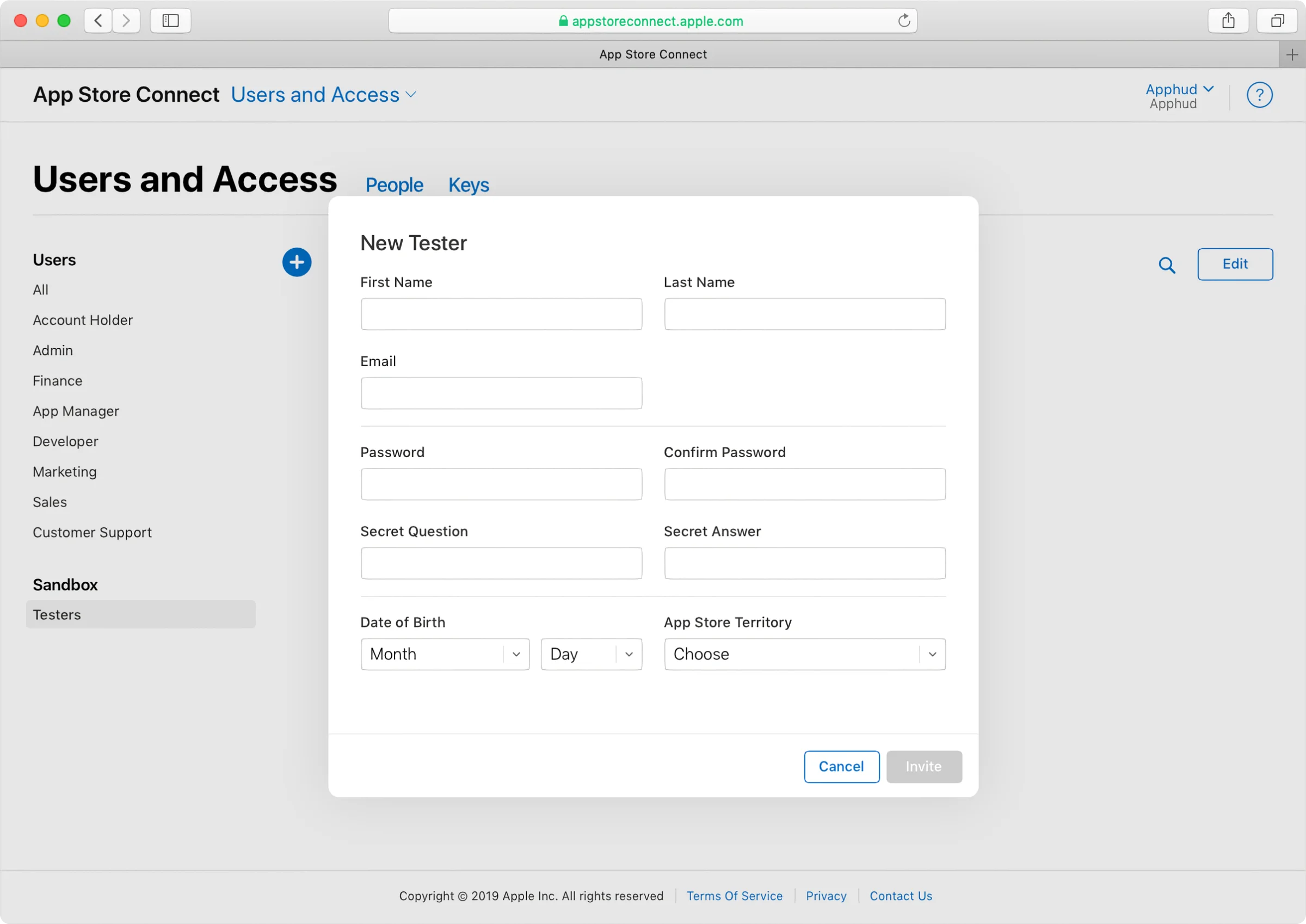
Before you begin testing in-app purchases in sandbox, you’ll need to create a sandbox testing account in: App Store Connect.
- In App Store Connect, navigate to Users and Access and click on Sandbox Testers.
- Click the add button (+) and enter the necessary tester details.
- Use the “+” symbol in the email field if you want to avoid creating a new email for each tester.
Remember, the tester’s name, email, and password cannot be edited once the Sandbox Apple ID is created.
- Go to Users and Access and click on Sandbox Testers.
- Click the add button (+).
- Enter the necessary tester information and click on Create.
- You can use the “+” symbol for the email to prevent you from creating a new email for every user.
- Please note that once the Sandbox Apple ID is created, the tester’s name, email, and password cannot be edited.
Sandbox Durations for Testing Subscriptions
After adding testers in Sandbox, you can choose a subscription renewal speed for each tester, allowing you to determine how quickly subscriptions renew. By default, the accounts are set to a speed equalization of 1 month = 5 minutes.
- Monthly subscriptions renew every 5 minutes.
- Weekly subscriptions renew every minute.
Subscriptions will automatically renew up to 12 times per account, but the actual number of renewals is random — in our practice, it’s up to 6.

In App Store Connect, you can select a subscription renewal rate for each Sandbox Apple ID account. This accelerated timeline enables quicker sandbox app testing of various subscription models, including upgrades, downgrades, and crossgrades.
Test iOS Subscriptions with Sandbox
To test whether you iOS subscriptions work properly, use testing device:
- Go to Settings —> App Store —> Log into Sandbox tester account.
- Initiate a purchase in your app.
- You might be asked to fill in your account details again. You might not expect this, but that’s normal.
- Wait for the alert from Apple about the successful purchase.
Test iOS Subscriptions: Upgrades, Downgrades, and Crossgrades
To test upgrades, downgrades, and crossgrades of iOS subscriptions in the sandbox environment, you can follow the steps below:
- Subscribe to the monthly subscription within your app.
- Open the Settings app on your device and go to “App Store” under your Sandbox account.
- Tap “Manage” and then select “Subscriptions.”
- Choose your existing subscription and select a different product from the list of options to change your subscription. If you want to downgrade your subscription, you’ll need to wait 5-10 minutes before proceeding to the next step.
- Launch your app again.
- Verify that the user is subscribed to the new product and that the changes to the subscription have taken effect.
Test Subscription Cancellation on iOS
Disable Auto-renew:
- On your iOS device, go to Settings > App Store.
- Under the Sandbox Account section, tap on your highlighted Sandbox Apple ID and select “Manage.”
- Choose the subscription product that you want to cancel from the Subscriptions page.
- Tap on the “Cancel Subscription” button.
- No active subscriptions could be found.
Reenable Subscription Renewal:
On the same “Manage Subscriptions” page, tap on the canceled subscription and confirm the payment to reenable the subscription renewal.
Test Restore Purchase on iOS
To test the functionality of restoring a purchase during an active subscription in the iOS sandbox environment, it is important to note that unlike the production sandbox and production environments, there is no receipt file generated on the device until a purchase is made. Therefore, to fully test restoring a purchase in the Sandbox, a button, gesture, or another method needs to be added to the app to revert it to the unsubscribed state.
Testing the restoration of a purchase during an active subscription in the sandbox environment involves the following steps:
- Sign up for a monthly subscription.
- Reinstall the app and make sure that you don’t have any subscriptions there.
- Use a button or gesture that was added to revert the app to the unsubscribed state.
- Tap the “Restore Purchases” button.
- If this is done before the subscription cycle ends (within 35 minutes), the app should detect an active subscription and change to the subscribed state.
To test the restoration of purchases across devices in the sandbox environment, follow these steps:
- Subscribe to a monthly plan on device A.
- Install the app on device B before the subscription expires.
- Log into the same Sandbox account used on device A.
- Launch the app on device B.
- Tap the “Restore Purchases” button.
What's next ?
Once you have tested the entire process, you can implement your in-app purchases in your production app. It is important to note that you will need to use different settings and test user accounts in your production app than you used in the sandbox environment.
In summary, testing in-app purchases in the sandbox environment is a crucial step in ensuring that your app is functioning properly before submitting it to the App Store. With Qonversion, you can ensure that your subscription model works seamlessly across all devices, minimizing the possibility of billing issues. It also provides a comprehensive analytics dashboard with valuable insights into user behavior and subscription performance.
FAQ: Testing iOS In-App Purchases with Sandbox
When updating this article, we decided to address some of the most common questions on the topic of testing iOS in-app purchases in the sandbox environment. Below is a concise FAQ to help you better understand the process and resolve any uncertainties quickly and effectively.
1. What is the sandbox environment in iOS?
The sandbox environment is a testing environment provided by Apple that simulates the App Store. It allows developers to test in-app purchases and subscriptions without processing real transactions or charging users.
2. Why should I test in-app purchases in the sandbox?
Testing in the sandbox ensures that your in-app purchases and subscriptions work correctly before launching your app on the App Store. It helps identify any potential issues in the purchasing flow without affecting real users or transactions.
3. How do I set up a sandbox tester account?
To set up a sandbox tester account, go to App Store Connect, select Users and Access, and click on Sandbox Testers. Add the tester’s details, and the sandbox Apple ID will be created for testing purposes.
4. Can I test in-app purchases without submitting my app for review?
Yes, you can test in-app purchases in the sandbox environment without submitting your app for App Store Review.
5. How do I test iOS subscriptions in the sandbox?
Once you log in to your sandbox tester account on your device, initiate a subscription purchase in your app. You can adjust subscription renewal speeds (e.g., one month equals five minutes) to accelerate the testing process.
6. How do I test upgrades, downgrades, and crossgrades for subscriptions?
To test subscription changes, go to Settings > App Store under your sandbox account and select Manage Subscriptions. Choose a different subscription tier, and confirm the changes by relaunching your app.
7. How do I test subscription cancellations in the sandbox?
Go to Settings > App Store on your iOS device, tap your sandbox Apple ID, select Manage Subscriptions, and choose the product to cancel. You can re-enable the subscription by following the same steps.
8. What is the process for restoring purchases in sandbox testing?
To restore purchases in the sandbox, add a Restore Purchases button or gesture in your app. After reinstalling the app, use this method to detect active subscriptions on the tester's device.
9. Can I test in-app purchases across multiple devices in the sandbox?
Yes. Log into the same sandbox Apple ID on different devices, and you can restore purchases or continue subscriptions across multiple devices by using the Restore Purchases feature.
10. How can I simulate billing issues during sandbox testing?
Apple introduced the ability to simulate billing failures after WWDC22. You can configure this to test how your app reacts to failed transactions and other billing-related issues.
11. Is there a limit to how many subscriptions I can test in the sandbox?
In the sandbox, subscriptions can renew up to 12 times, though the actual number of renewals may vary randomly between 6 and 12.
12. Can I use the same settings from sandbox testing for the live app?
No. Sandbox accounts and settings differ from the live App Store environment. You will need to configure your app and accounts separately for the production release.
13. What tools can help streamline in-app purchase testing?
Qonversion provides a platform for managing subscriptions and in-app purchases across iOS and web. It helps streamline the process by offering advanced analytics, subscription management, and real-time tracking of user behavior.
Well, that's it for now! Thanks for reading, and we hope you found this guide helpful. If you need any further assistance or have more questions, feel free to reach out — you know who to talk to.

Tatev
Content Manager at Qonversion
Tatev creates content that helps mobile app developers optimize their subscription strategies.