Global consumer spending on android apps grew 33% year-over-year in Q3 2020 and reached $10B according to the Sensor Tower report.

In-app purchases including in-app subscriptions are the major way to monetize mobile apps that provide digital services. This article is a comprehensive guide on adding in-app purchases to an Android app from scratch using Google Play’s billing system which allows you to sell digital products.
Google Play In-App Purchases Main terms
Google Play app allows users to download apps and other digital products.
- The Google Play Console allows developers to create and publish apps and configure digital products you want to sell in your app.
- Google Play Billing Library. Google Play’s billing system can be accessed via Google Play Billing Library. It provides an interface for sending in-app billing requests and managing transactions. It is an intermediary between the Android app and the Google Play app.
- Google Play Developer API is a set of REST APIs that communicate with Google Play. It allows you to query and manage the in-app products, check the in-app subscription status, and verify purchases to detect fraud.
- Product SKU (Stock Keeping Unit) is a product ID.
In-app products types
There are two types of digital products:
1. Recurring Subscription. In-app product with recurring billing period:
- Weekly;
- Monthly (1, 3, and 6 months);
- Annually.
Users have to pay every billing period to continue using the application's premium (total) functionality. Subscriptions renew automatically until they’re canceled. You can configure the following subscription options:
- Free trial. This allows users to try the features before paying for them. Trial duration should be anywhere from 3 to 999 days.
- Introductory price. Give new subscribers a discount for a specific time.
- Grace period: This period provides users with time to solve payment issues and keep the subscription active. You can find out more about subscription statuses here.
- Resubscribe option. Let users resubscribe from the Play Store after a subscription cancellation.
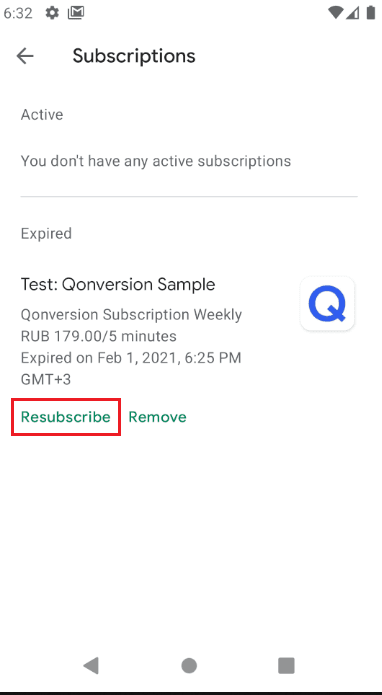
You may want to win users back after their subscription expires in your Android app by offering them a product ID with a discount, free trial, or intro price. The identifier of such a product is called a win-back SKU.
Examples of subscriptions: movie streaming services.
2. One-time products. Non-recurring charge to a payment method. Google Play Billing supports two types of one-time products:
- A non-consumable product is a product that, once purchased, can no longer be purchased. It is permanently associated with the user’s Google Play account—an example of non-consumable products: premium race tracks in the game.
- Consumable products can be repurchased. They are temporarily associated with the user’s Google Play account. An example of consumable products is in-game coins.
Google Play’s billing system under the hood
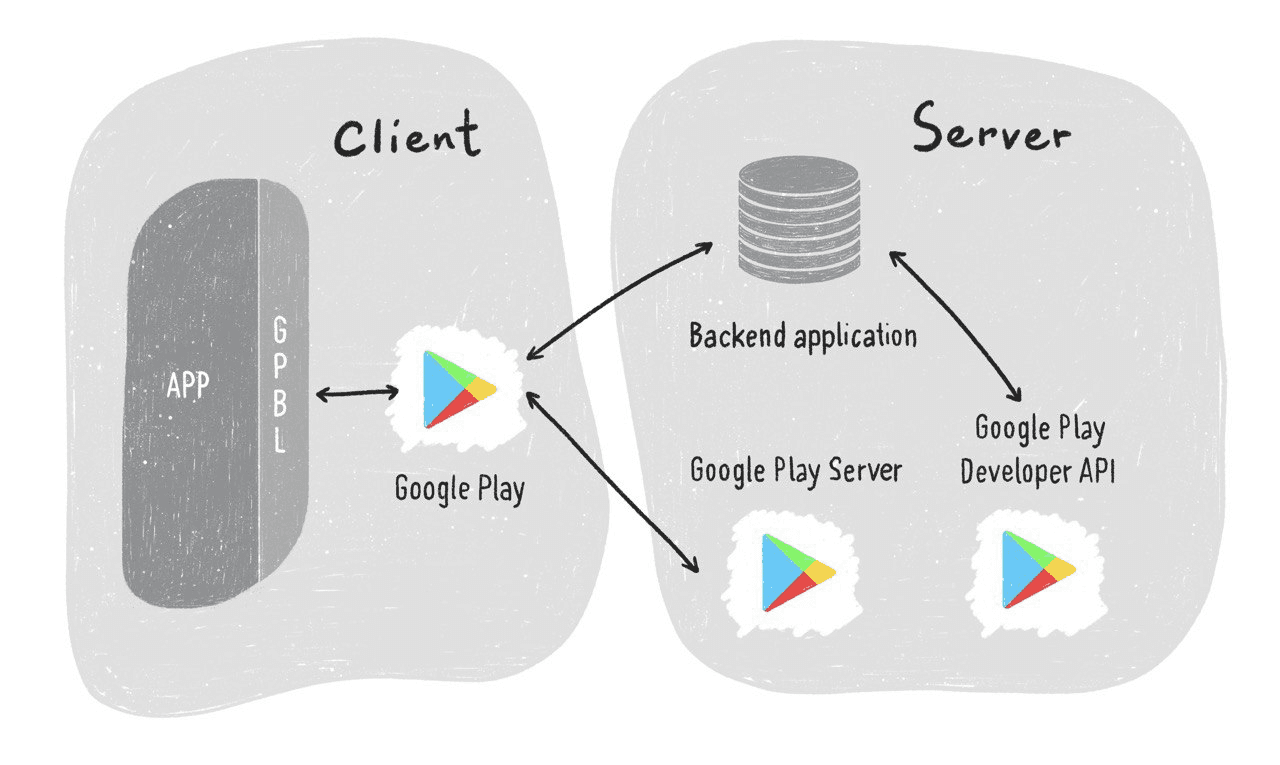
Let’s look at the interaction between the client (the app with Android Billing Library) and the server. When a user initiates any transaction related to the Google Play Billing Library, it usually communicates with the Google Play app to deal with the Google Play Server. It would be best if you also had communication between your Backend Server and Google Play Developer API. Your Backend Server is responsible for typical use cases such as payment verification or getting notifications from the Google Play Developer API when a user cancels a subscription.
It would be best if you verified purchases for several reasons. One of them is to prevent hackers from hacking your app and faking successful purchases. You also need to be sure that whatever you get back from Google Play is valid before you enable premium access in your app.
Getting ready
Before you can sell products in your app, you have to follow the steps below.
1. Create a developer account. Google provides detailed documentation on that. 2. Create and set up your app. Once you have created a Google Play developer account, you can create apps and configure them using the Google Play Console. After creating an application, you can start configuring it. The app’s dashboard guides you through all the steps to make it available on Google Play.
3. Add the dependency to your app’s build.gradle file as below:
Before proceeding, you must publish your signed Android application in the Google Play Console. You must publish your app in either production, alpha, or beta channels. While your app is in review and has not been published, your in-app purchases won’t work. 4. Setting Up the Testing Environment. You can Configure license testing for the Developer account in the Google Play Console. Application licensing allows you to set up a list of Gmail accounts to test your in-app purchases. You don’t have to add a publishing account here because it is considered a licensed tester by default.
Implementation
While you wait for the app to be reviewed, let’s add the Google Play Android Billing Library to the app.
BillingClient instance
For the sake of simplicity in our example, all interactions with the Google Billing library system happen within the MainActivity class. However, it’s better to use a separate class for interactions with the BillingClient in the real app toss logic independent from the keep the busine UI and make it testable. BillingClient provides the interface to interact with the Billing Library.
MainActivity implements two interfaces: PurchasesUpdatedListener and BillingClientStateListener.
Use newBuilder() to create an instance of BillingClient. Set a PurchaseUpdateListener, which the Billing Library calls when new purchases are detected. The onPurchasesUpdated function implementation will be presented later in the text.
Establish a connection
Establish a connection by calling startConnection()* *and pass an instance of BillingClientStateListener as a parameter. The onBillingSetupFinished() method will be triggered when the connection is successful. After that, you can purchase the billing cache and get available in-app products. You will have to restart the connection when onBillingServiceDisconnected() is called.
There are product IDs that were set in the Google Play Console.
Retrieve products, subscriptions, prices, etc
Once BillingClient is ready you can query for the SkuDetails of the products from the Google Play Console. BillingClient refers to in-app products as ‘INAPP’, and as ‘SUBS’ to subscriptions.We get the success response code most of the time from Google Billing API, but keep in mind there are other 11 responses from billing that you need to handle.
Check previous purchases
Retrieves all active purchases and non-consumable in-app products of the user.
The processPurchases* *function implementation will be presented later in the text.
Buy products
Initiate a billing flow by calling launchBillingFlow() and pass an instance of BillingFlowParams as a parameter.After the user makes a purchase, you will receive a response in the onPurchasesUpdated() function.
Processing purchases: Consume and Acknowledge purchases
A purchase will be refunded within three days if you don’t acknowledge it. To confirm a purchase, first check that the purchase state is PURCHASED, not PENDING. Before granting entitlements to the user and acknowledging the purchase, verify it on the server: make sure the purchase token is valid. For one-time products, call the consumeAsync() method. For non-consumable in-app products and subscriptions, use the acknowledgePurchase() method.The example uses the following check* if (isSkuConsumable(purchase.sku)) *to determine which method should be called: consume or acknowledge. You must validate consumable purchases according to the logic of your application.
Grant user entitlements to the app content
Finally, unlock user access to the application content. Launch the app, buy an in-app product, and ensure everything works correctly.
You can read about setting up test devices in our guide for Android test devices.
Google Play Billing Library 4.0.0
If you plan to migrate to Google Play Billing Library version 4, please read this guide.
Using Qonversion for Google Play Billing
Qonversion simplifies the implementation of Google Play’s billing system. It provides the back-end infrastructure to validate user receipts and manage cross-platform user access to paid content on your app, so you do not need to build your own server.
Qonversion allows you to create products, identify them, and associate them with in-app products from the Google Play Console. Then, you can create permissions that provide access to your app's premium features.
To make a purchase, call the Qonversion.purchase() method, as shown below. Upon successful purchase, you will receive a response in the onSuccess callback with permissions. Otherwise, call onError with the detailed error description.
Whenever you want to get the last subscription status and manage user access to the premium content call the Qonversion.checkPermissions() method.Read more about Qonversion features here.References

Maria
Qonversion Team
Maria creates content about in-app purchases and subscription testing.